Dashboards and findings
Reports answer one question each. Dashboards bring the answers together, so you can see the state of the tenant at a glance and go to the report behind any number.
The tenant overview
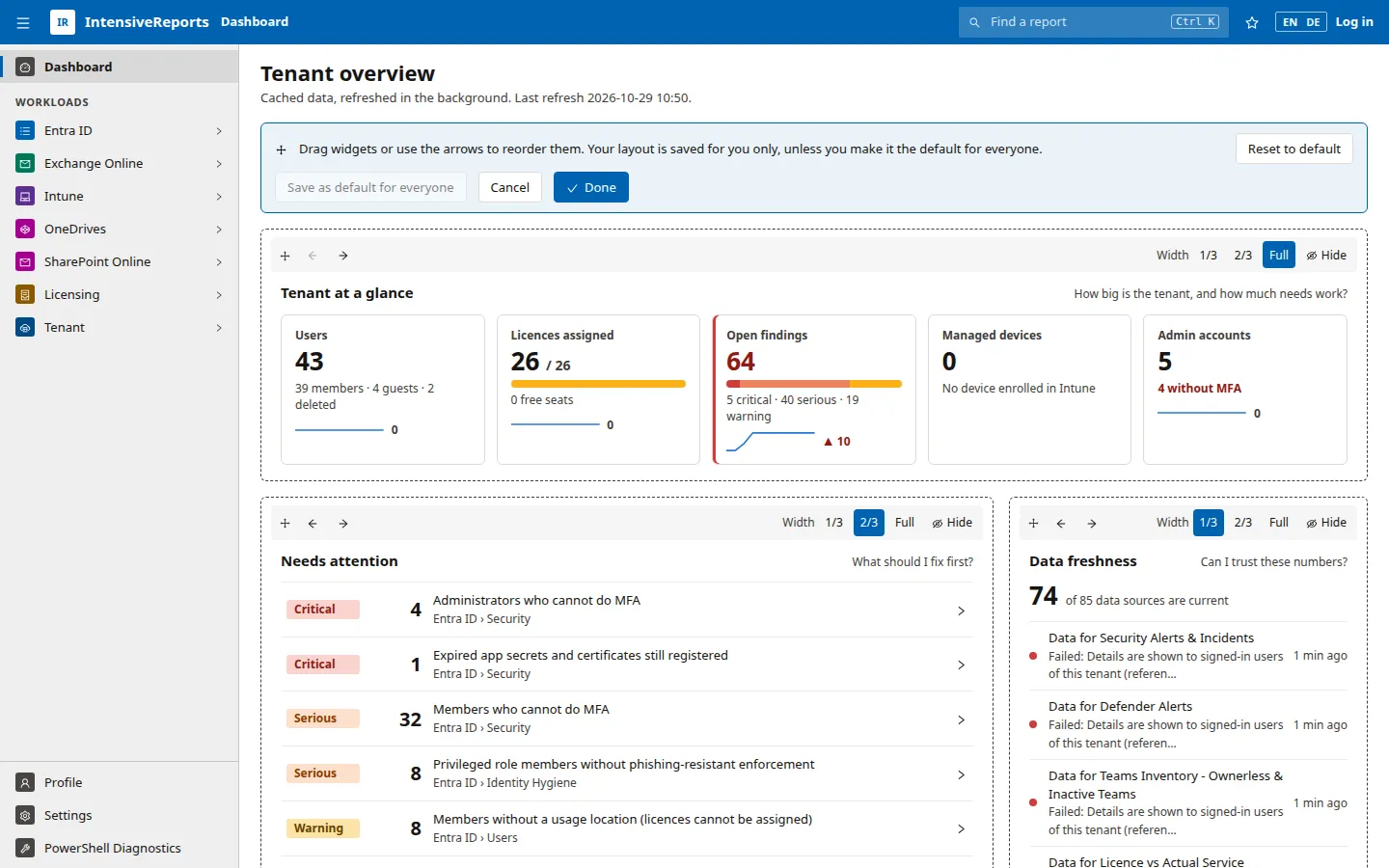
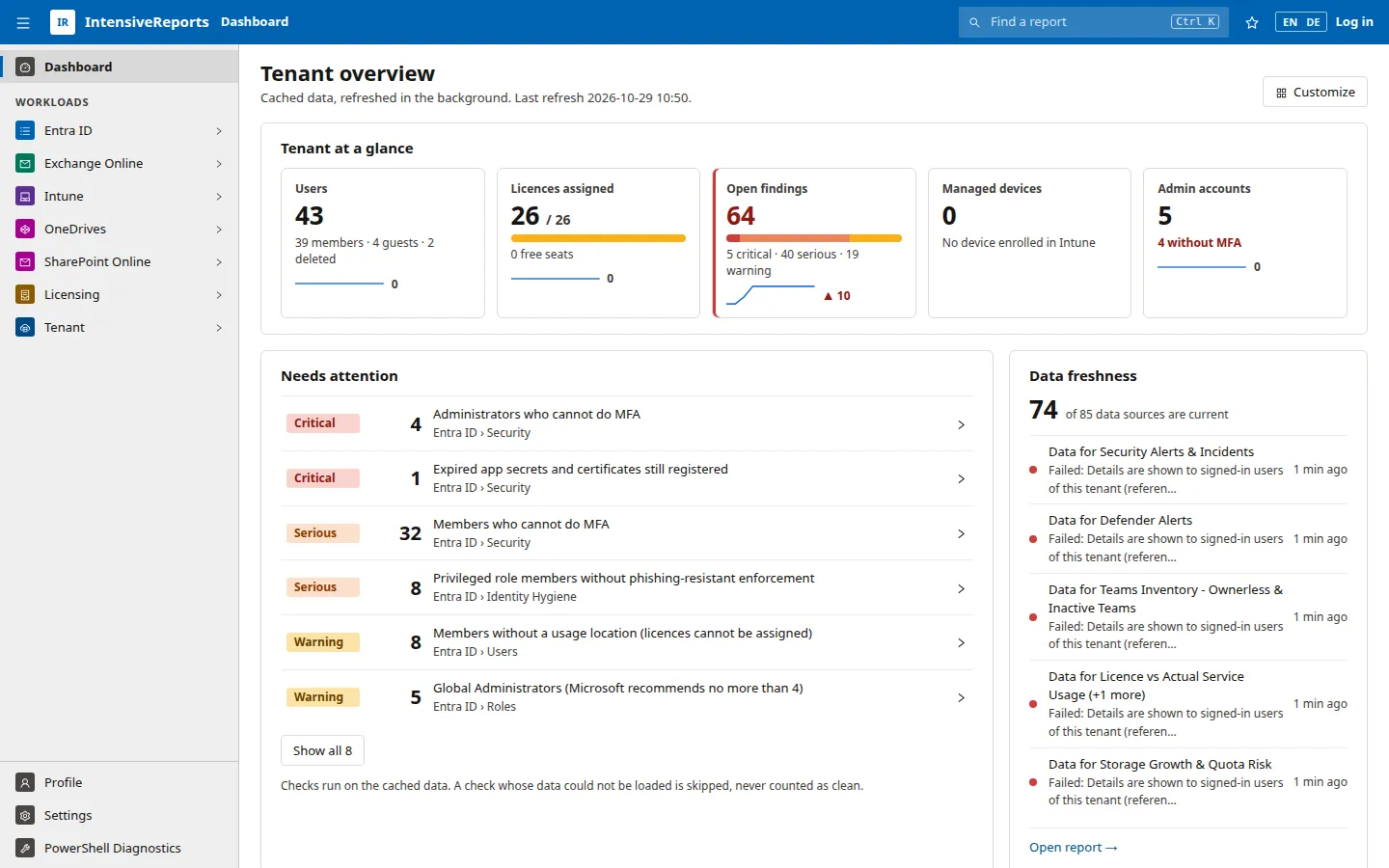
Section titled “The tenant overview”The start page, Tenant overview, is a dashboard of widgets. The default layout shows:
- Tenant at a glance: users, licences assigned, open findings, managed devices and admin accounts, each with a 30-day trend line.
- Needs attention: the most serious findings across the tenant, each linking to its report.
- Data freshness: whether the data behind the numbers is current, and which data sources failed.
- Widgets for licences, administrators without phishing-resistant MFA, expiring app credentials, device compliance, MFA readiness, sign-in activity and privileged roles.
There are 25 built-in widgets in all, including Conditional Access policies, recent directory changes, app consents, licences to reclaim, guest accounts, inactive devices, group hygiene, OS versions in support, disk encryption, Autopilot enrolment and your favourite reports.
Workload dashboards
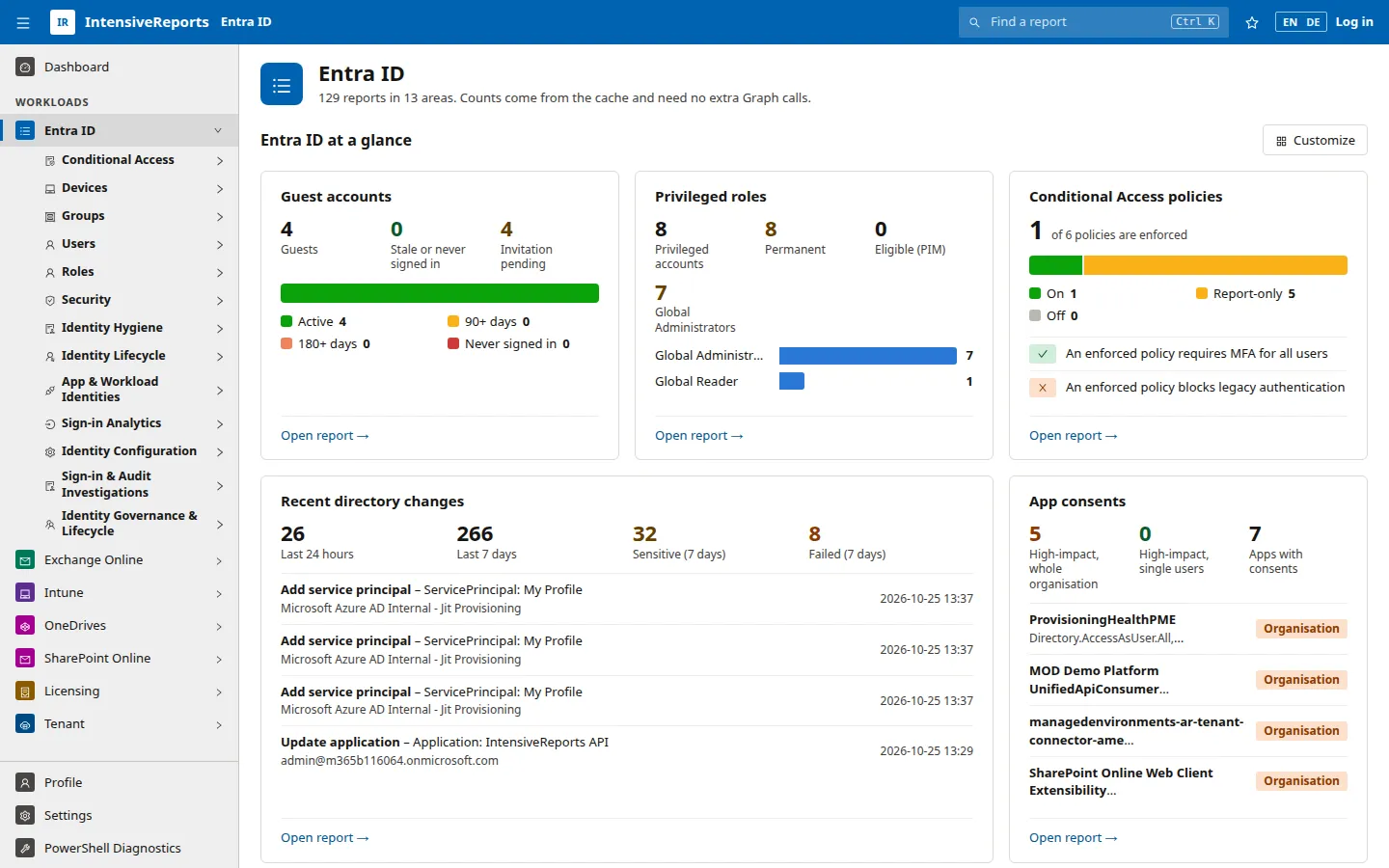
Section titled “Workload dashboards”Entra ID, Exchange Online, Intune, OneDrive, SharePoint Online, Licensing and Tenant each have a landing page. At the top is the workload’s own dashboard (“Entra ID at a glance”). Below it are cards for each group of reports, with a count next to each report:
- a grey count is inventory (how many objects the report lists),
- a coloured count is a number of findings,
- a green tick means the check ran and found nothing.
A filter box and the All, Needs attention, Favourites and Preview buttons narrow the list. The counts come from data the app already holds, so opening a landing page costs no extra calls to Microsoft.
Report tiles
Section titled “Report tiles”Any report that rates its rows can be added to any dashboard as a report tile. A tile shows the report’s key numbers and its most serious rows, and links to the full report. About 160 reports can be tiles. Tiles of reports that run PowerShell show a Load button, and tiles of scan reports show the last scan with a Run scan button, so a dashboard never starts slow work on its own.
Findings and severity
Section titled “Findings and severity”Many reports are findings lists: each row is a check or an object, rated by severity.
| Severity | Shown as | Meaning |
|---|---|---|
| Critical | red | Fix now: a real exposure, for example an administrator who cannot do MFA. |
| Serious | orange | Fix soon: a significant weakness. |
| Warning | yellow | Worth a look: hygiene or a risk that depends on context. |
| OK | green | Checked and fine. |
| Info | grey | For information only. |
Critical, serious and warning rows need attention. A findings list opens on Needs attention and can show all rows with one click. See Working with findings.
The dashboard’s Needs attention widget runs twelve tenant-wide checks on the cached data, for example administrators who cannot do MFA, disabled users who still hold a licence, expired app secrets, members who cannot do MFA, pending guest invitations and full licence products. Each check uses a report’s own numbers and links to that report. The Open findings tile in Tenant at a glance adds up what these checks found, split into critical, serious and warning. A check whose data could not be loaded is skipped and never counted as clean.
Trend lines
Section titled “Trend lines”After each refresh, the app records the dashboard’s headline numbers for the day: members, guests, licences assigned and purchased, open and critical findings, enrolled devices, compliance, admins, admins without MFA and Secure Score. The history is kept for 400 days on the server. The tiles in Tenant at a glance draw the last 30 days, once two days of history exist.
Your layout and the default layout
Section titled “Your layout and the default layout”Every user can Customise any dashboard: reorder widgets by dragging or with the arrow buttons, set each widget’s width (one, two or three columns), hide widgets, add widgets and add report tiles. A dashboard holds up to 16 widgets. Your layout is stored in your browser and applies only to you.
Administrators can Save as default for everyone. Everyone who has not customised their own dashboard then sees that layout, and Reset to default brings anyone back to it. See The dashboard for the steps.