
Reading a report
Every report has the same parts: the data line at the top right, the title and the question it answers, key numbers and charts, filters, and the table.
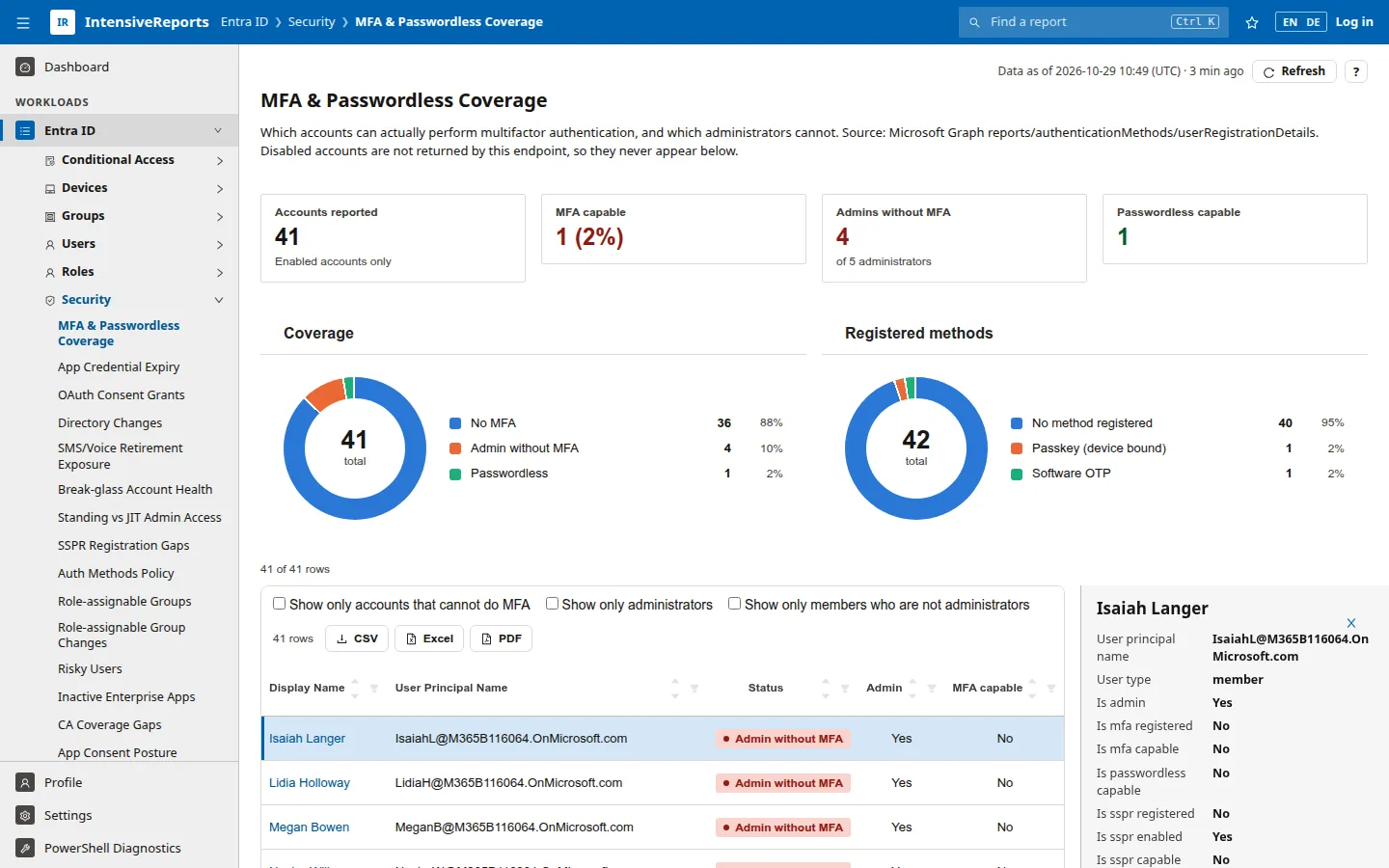
The data line: how fresh is this?
Section titled “The data line: how fresh is this?”At the top right of a report, the data line tells you how old the data is.
- Data as of date and time · age: the report is built from data the app keeps and refreshes in the background. The time is the oldest refresh of the data the report reads. Point at it to see which data sources those are.
- Loaded date and time · age: the report was read from Microsoft when someone opened it, and is kept for a while (one hour unless your administrator changed it).
- Data not loaded yet: nothing has been read yet, for example just after the app restarted.
- last refresh failed: the most recent refresh did not work; you see the last good data.
- Data switched off or n data sources switched off: an administrator switched off the data this report needs. See Report states below.

Refresh reads the report’s data from Microsoft again, now. While it runs, the arrow turns; when it is done, the button shows ✓ Updated for a few seconds. The arrow also turns when someone else, or the background refresh, is loading the same data. Refreshed data is shared: everyone who opens the report afterwards sees the new data.
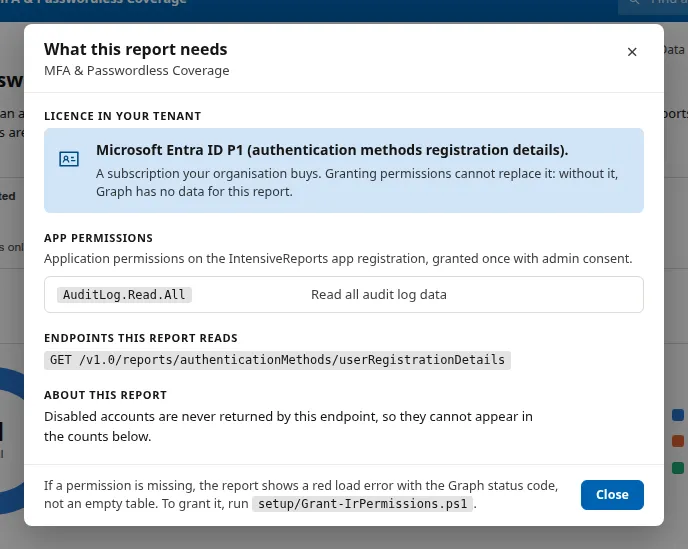
The ? button: what this report needs
Section titled “The ? button: what this report needs”The ? button next to Refresh opens What this report needs:
- Licence in your tenant: the Microsoft subscription the report’s data depends on. Permissions cannot replace a missing licence.
- App permissions: the permissions the IntensiveReports app registration needs, each with Microsoft’s description.
- Roles and other setup, if any.
- Endpoints this report reads: the Microsoft Graph addresses or PowerShell commands behind the report.
- About this report: notes on how to read it.
- Documentation: a link to the report’s page on this site, with its columns, data and how to act on it.
Report states
Section titled “Report states”| You see | It means | What to do |
|---|---|---|
| Loading… | The report is being read from Microsoft. PowerShell reports can take up to a minute. | Wait; the page fills in by itself. |
| Run scan button | The report is a scan: it reads a lot of data and runs only when someone starts it. | Press Run scan. The last result stays until the next scan, for everyone. |
| This report could not be loaded | Microsoft refused the request or an error occurred. Usually a permission or licence is missing. | Open ? to see what the report needs, then press Try again or tell your administrator. If you are not signed in, you see a reference code instead of the error text; give it to your administrator. |
| Some sources could not be read - the report below is incomplete | Part of the data loaded, part did not. | Read the report with care, or ask your administrator. |
| This report’s data is switched off | An administrator switched off the data the report needs, under Settings > Data & cache. Nothing is fetched while it is off. | Ask an administrator to switch it on. |
| A green tick and a message such as Nothing needs attention. | The check ran and found no problem. | Nothing. |
| Nothing was returned. | The report ran but Microsoft returned no data. | Check the licence under ?; some data only exists with certain licences. |
Some reports need a value before they can run, for example a user’s name. Enter it in the box above the report and press Show.
Key numbers and charts
Section titled “Key numbers and charts”Under the title, tiles show the report’s key numbers, such as how many accounts it checked and how many have a problem. Charts show how the rows are spread, for example by status or method.
Filters
Section titled “Filters”Many reports have named filters above the table. They come in two kinds:
- Chips (tabs) with counts, such as All 2 and No free seat 2: pick one at a time.
- Switches (check boxes), such as Show only administrators: switch on as many as you like; all of them apply. Some are already on when the page opens.
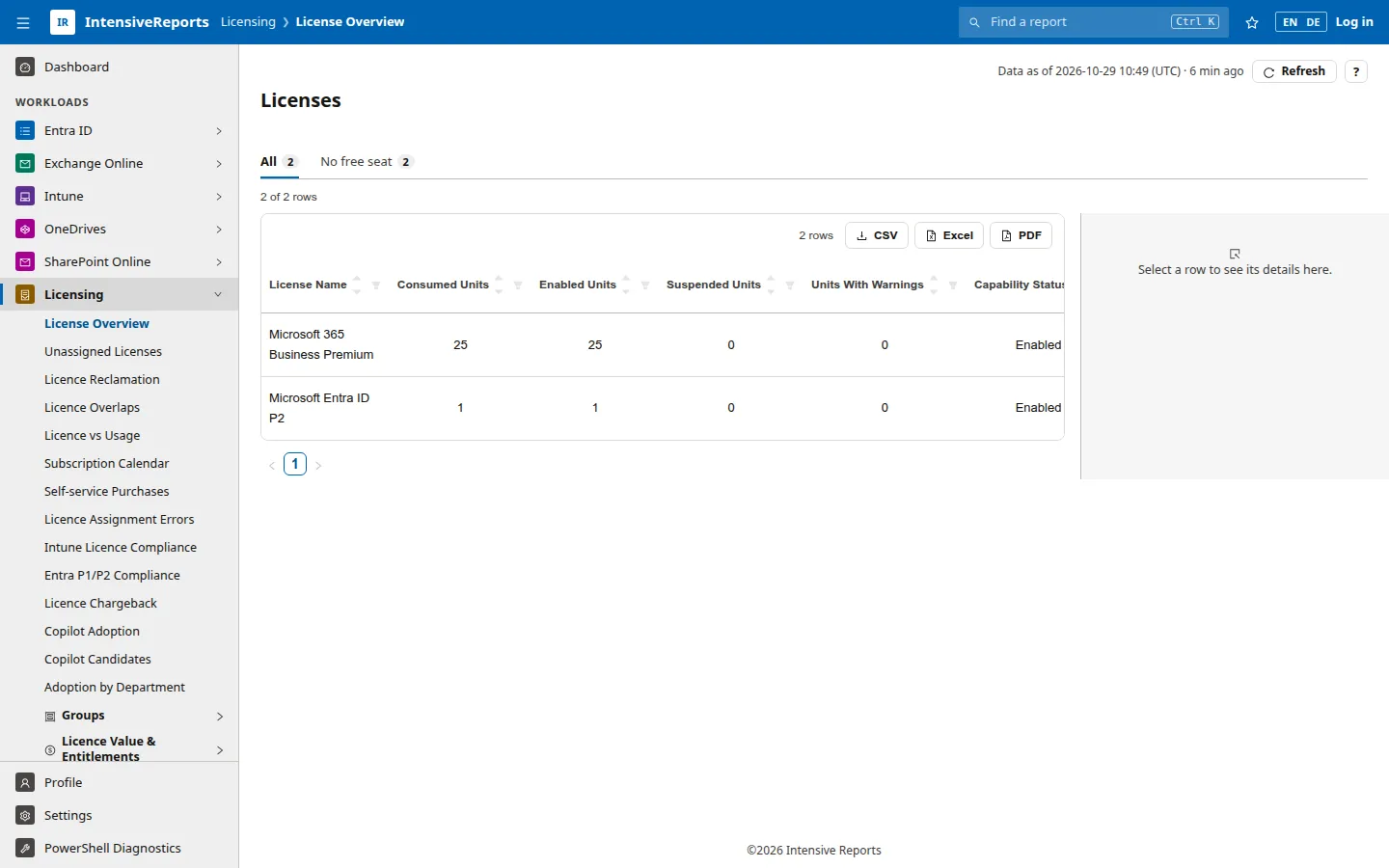
The row count above the table, for example 9 of 41 rows, shows how many rows pass the filters.
The table
Section titled “The table”- Sort: click a column header. Click again to reverse the order.
- Filter a column: click the funnel icon in a column header and pick values.
- Pages: use the page numbers below the table. Set how many rows a page shows under Settings > Display > Rows per page.
- Row details: click a row. Its details open in a panel beside the list, with every field of the row. Some layout styles also offer a Raw data tab.
- Portal links: names in blue open the object in the Microsoft admin portal, in a new tab. Some reports also have an Open in the admin portal link for the whole list.
- Empty cells show a faint dash, and plain True / False values show as a filled or a hollow dot.
To take the rows with you, see Exporting data.