
Working with findings
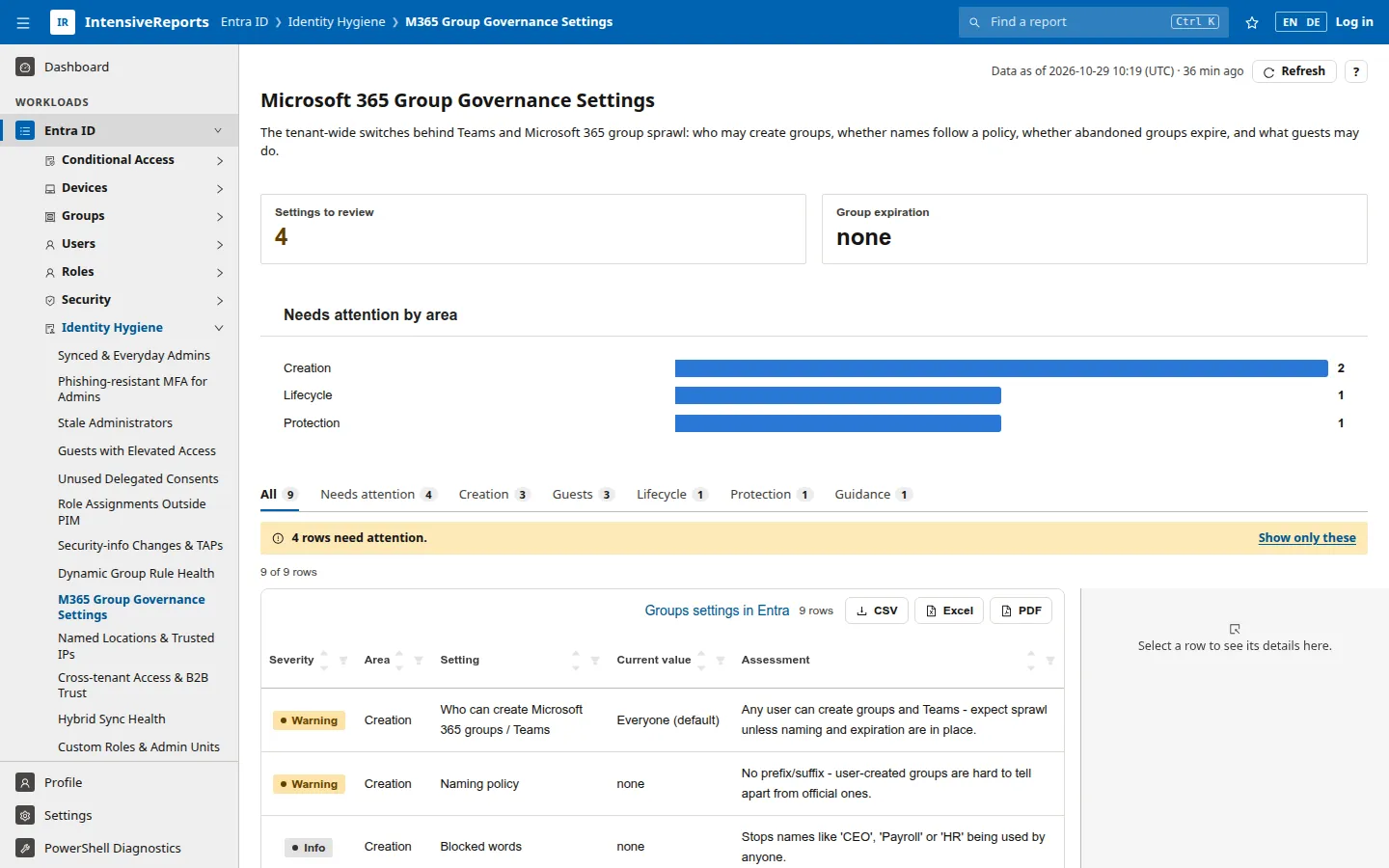
About 120 reports are findings lists. Instead of listing every object, they check something and rate each result, so the problems come first.
Severity
Section titled “Severity”| Label | Meaning |
|---|---|
| Critical | A real exposure. Fix it now. |
| Serious | A significant weakness. Fix it soon. |
| Warning | Hygiene, or a risk that depends on your context. Review it. |
| OK | Checked and fine. |
| Info | For information; nothing to fix. |
Critical, serious and warning rows need attention. Rows are sorted by severity, most serious first.
Problems first, everything on request
Section titled “Problems first, everything on request”A findings list opens on Needs attention, so you see only the rows to act on. The tabs above the table switch between:
- All: every row, including OK and Info rows, for a complete picture or an audit.
- Needs attention: the critical, serious and warning rows.
- one tab per category (for example Creation, Guests, Lifecycle) when the report has more than one.
Each tab shows its count. When All is selected and some rows need attention, a yellow bar says how many; Show only these switches back.
When nothing needs attention, the report says so with a green tick, for example Nothing needs attention. A check that could not run (for example because a licence is missing) says why instead, so an empty list never hides a failure.
The columns
Section titled “The columns”Findings lists share one layout. The column titles change per report, but the meaning stays the same:
| Column | What it holds |
|---|---|
| Severity | Critical, Serious, Warning, OK or Info. |
| Category | The group of the check, for example the area of a setting or the type of owner. |
| Subject | The object the row is about, linked to the admin portal when possible. |
| Check | The setting or rule that was checked. |
| Value | What the tenant has now. |
| Finding | What is wrong, or why it is fine. |
| Detail | More context, for example who or what is affected. |
| Date, Count | When it happened, or how many objects it affects. |
Columns that no row fills are hidden. The report reference lists each report’s own column titles.
Acting on a finding
Section titled “Acting on a finding”- Read the finding and the detail. They say what is wrong and usually why it matters.
- Click the row for the details panel. Review or change this in the admin portal and the linked subject take you to the right place in the Microsoft portal.
- Fix it in Microsoft 365. IntensiveReports never changes your tenant; you make the change in the portal or with your usual tools.
- Check the result. Press Refresh on the report. The row moves to OK or disappears, and the dashboard counts go down after the next refresh of its data.
- Track it. Export the list to Excel for a ticket or a review, or let the API feed your ticketing system.