
Finding reports
There are more than 300 reports. Four ways lead to the right one.
The menu
Section titled “The menu”The side menu lists the workloads: Entra ID, Exchange Online, Intune, OneDrives, SharePoint Online, Licensing and Tenant. Each opens into groups (for example Entra ID > Security) and the reports in them. Security, compliance and Teams reports sit under the workload whose data they read, for example Defender and Teams reports under Tenant.
Workload landing pages
Section titled “Workload landing pages”Click a workload’s name to open its landing page. At the top is the workload’s dashboard. Below it, every group of reports is a card, and every report shows a count:
- grey: how many objects the report lists (inventory),
- coloured: how many findings it has,
- green tick (None): the check ran and found nothing.
Type in Filter reports to narrow the cards, or use All, Needs attention, Favourites and Preview. Click the star next to a report to make it a favourite. A card shows eight reports; Show more lists the rest.
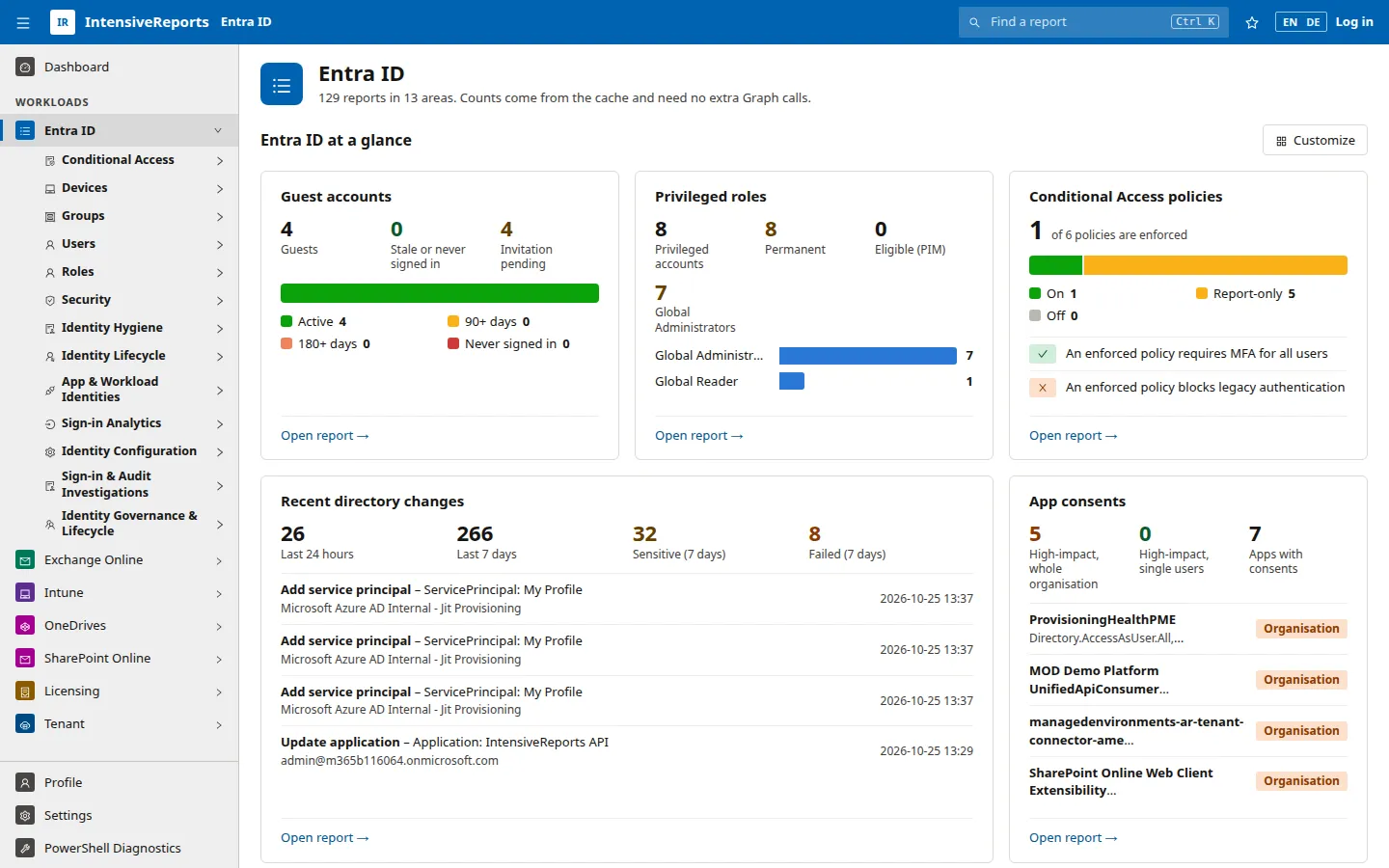
Reports marked Preview are newer and still being refined.
The page search
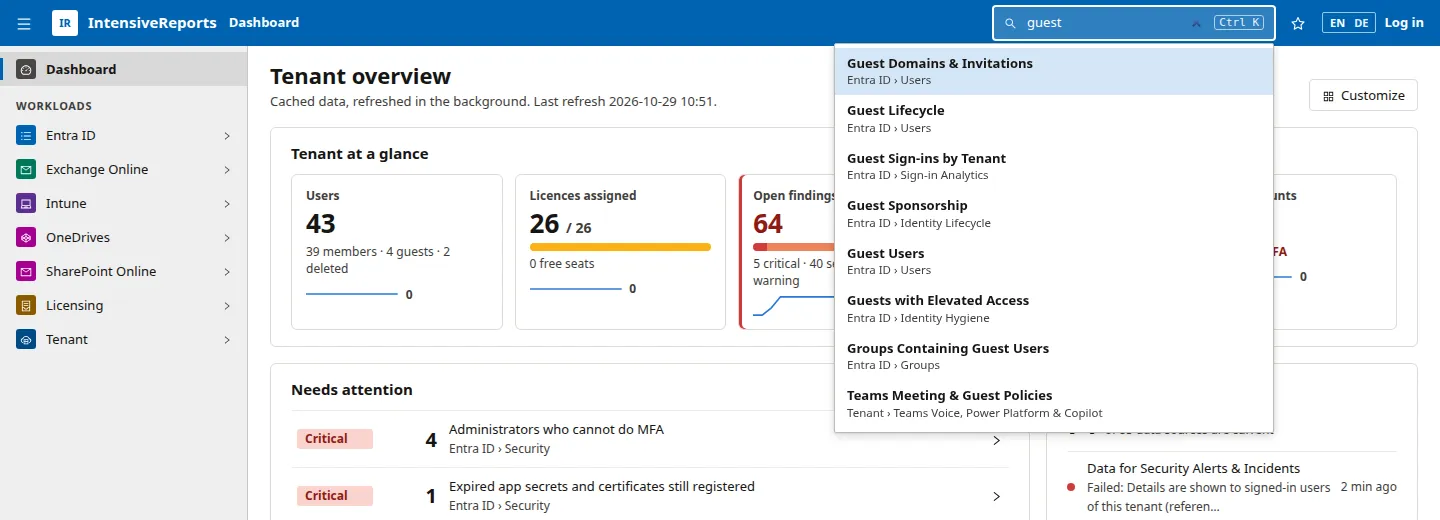
Section titled “The page search”Press Ctrl K (Cmd K on a Mac), or click Find a report in the top bar, and type a few words. The search matches words from the report’s name, its group and its workload, in any order, so “guest sign” finds Guest Sign-ins by Tenant. Use the arrow keys and Enter, or click a result.
Favourites
Section titled “Favourites”Open a report and click the star in the top bar. The report appears at the top of the side menu. You can keep up to 25 favourites, remove them with the star or under Settings > Navigation, and make one of them your Start page. The My favourite reports widget shows them on your dashboard with their current counts.
The report reference
Section titled “The report reference”This site has a page for every report: the question it answers, its columns and filters, the licence and permissions it needs. Browse the report reference by workload, or use the search at the top of this site. In the app, the ? button next to Refresh opens what the report on screen needs, with a link to its page here.