
Your settings
Open Settings at the bottom of the side menu, or from the menu under your initials. Each setting carries a tag:
- Only you: stored in this browser and applied at once. Nobody else is affected.
- Everyone: applies to every user of your installation. Only administrators can change it, and it changes only when they press Save.
Administrators are Global Administrators of your tenant and users with the IR.Admin app role, signed in from your tenant. Everyone else can see the Everyone settings but not save them.
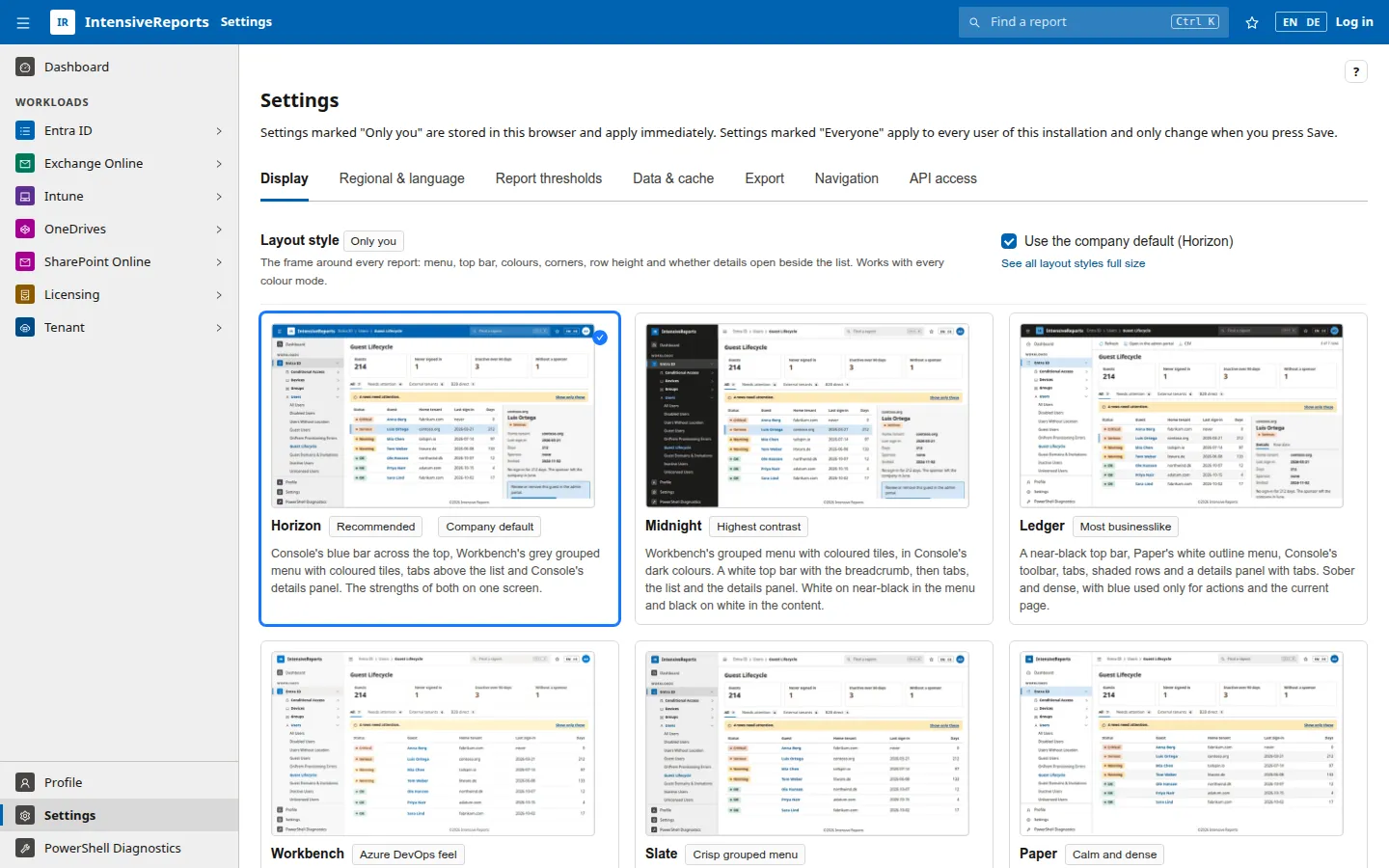
Display
Section titled “Display”| Setting | Scope | What it does |
|---|---|---|
| Layout style | Only you | The frame around every report: menu, top bar, colours, row height, where details open. Use the company default follows your organisation’s choice. See all layout styles full size compares them. |
| Company default layout style | Everyone | The layout style for everyone who has not picked one. |
| Colour mode | Only you | Light, Dark, or follow the operating system. |
| Table density | Only you | Comfortable, or Compact for more rows on screen. |
| Rows per page | Only you | 10, 25, 50, 100 or 200 rows per table page. |
Regional & language
Section titled “Regional & language”| Setting | Scope | What it does |
|---|---|---|
| Language | Only you | English or German for the menu, the Settings page, buttons and table controls. Report pages stay in English. The page reloads. |
| Date format | Only you | How dates appear in report tables. |
| Time format | Only you | 24-hour (14:05) or 12-hour (2:05 PM). |
| Time zone | Only you | Times are converted to this zone; your browser’s zone unless you pick one. Dates without a time are never shifted. |
| Number format | Only you | The separators in key numbers and summaries. |
A Preview shows a date, a date with time and a number in your choices.
Report thresholds (administrators)
Section titled “Report thresholds (administrators)”Numbers some reports use to decide what counts as a problem. All apply to everyone.
| Threshold | Used by |
|---|---|
| Inactive user (days without sign-in) | Inactive Entra ID Users, Licence Reclamation Candidates, Unused Mailboxes and related reports |
| Inactive guest (days without sign-in) | Guest Lifecycle |
| Grace period before “never signed in” is flagged (days) | Guest Lifecycle and the never-signed-in checks |
| Stale device (days since last Intune sync) | Devices Not Synced Recently, Intune Compliance Posture |
| Inactive privileged account (days) | Stale Administrators |
| Password age warning (days since last change) | Days Since Last Password Reset for Users |
| Secret / certificate expiry warning (days ahead) | App & Service Principal Credential Expiry |
| Device naming convention (regular expression) | Device Naming & Category Compliance |
Each threshold shows its default and its allowed range. Reports already open use new values when they are opened again.
Data & cache (administrators)
Section titled “Data & cache (administrators)”How the app keeps tenant data current. The settings apply to everyone.
- Refresh pace: Faster (half the interval), Normal, Relaxed (twice the interval) or Minimal (four times). Slower means fewer calls to Microsoft and less throttling, but older data.
- Pause background refresh: data then changes only when someone presses Refresh.
- Keep on-demand reports for: how long reports that run PowerShell or slow Graph calls are kept after loading (60 minutes by default).
- Cache status: every data source with its state, number of items, last and next refresh, interval and last error. Refresh reloads one source, Refresh all now reloads all of them. The Fetch switch turns a data source off for everyone; reports that need it then say that their data is switched off.
- Server memory shows how much memory the app uses; Measure now gives an exact figure.
Everyone can open this tab to see the state of the data.
Export
Section titled “Export”| Setting | Scope | What it does |
|---|---|---|
| CSV separator | Only you | Comma, semicolon or tab. |
| Add a UTF-8 marker (BOM) to CSV files | Only you | Helps Excel show accents and umlauts correctly. |
| File name | Only you | A pattern with {report}, {date}, {time} and {tenant}. |
| Pseudonymise personal data | Only you | Replaces e-mail addresses, user principal names and people’s names with codes in exports. |
Navigation
Section titled “Navigation”| Setting | Scope | What it does |
|---|---|---|
| Start page | Only you | The page that opens first: the dashboard or one of your favourites. |
| Start with the side menu collapsed | Only you | You can always open it with the button at the top left. |
| Favourites | Only you | Your favourite reports, with their address; Remove takes one off the list. |
API access (administrators)
Section titled “API access (administrators)”Switches the report API and MCP server on or off and manages its clients. See API and MCP setup.
Restore defaults
Section titled “Restore defaults”At the bottom of the page:
- Reset my preferences: your display, regional, export, navigation and dashboard choices go back to the defaults. Favourites are kept. The page reloads.
- Reset all to defaults (administrators): report thresholds, cache settings, the company default layout style and the default dashboards go back to the built-in values, for everyone.
- Restore previous settings (administrators): undoes the last change to the settings for everyone.