
Personalisation
IntensiveReports adapts to the way you work. Your choices are stored in your browser, apply at once and affect only you. Administrators can set the defaults for everyone who has not made a choice.
Layout styles
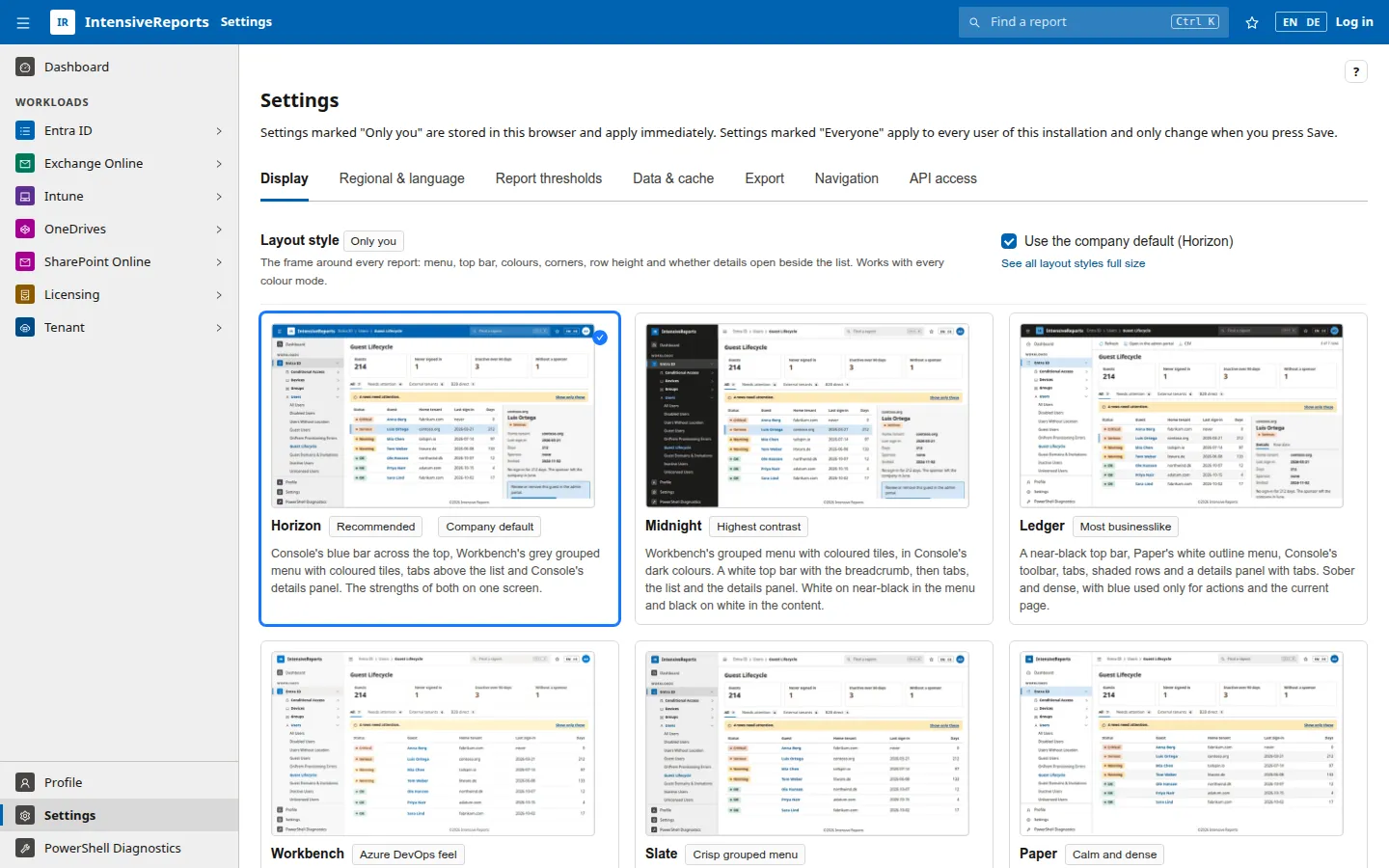
Section titled “Layout styles”Twelve layout styles change the frame around every report: the menu, the top bar, colours, corners, row height and whether row details open beside the list. Horizon is the default.
| Style | In short |
|---|---|
| Horizon | Recommended |
| Midnight | Highest contrast |
| Ledger | Most businesslike |
| Workbench | Azure DevOps feel |
| Slate | Crisp grouped menu |
| Paper | Calm and dense |
| Atlas | Reports in the menu |
| Console | Azure portal feel |
| Cobalt | Crisp details beside the list |
| Charcoal | Like the new Azure portal |
| Compass | Icon plus a word |
| Breeze | Modern app |
Settings > Display shows a preview of each style, and See all layout styles full size opens them side by side. Administrators choose the Company default layout style for everyone who has not picked one.
Dark mode and density
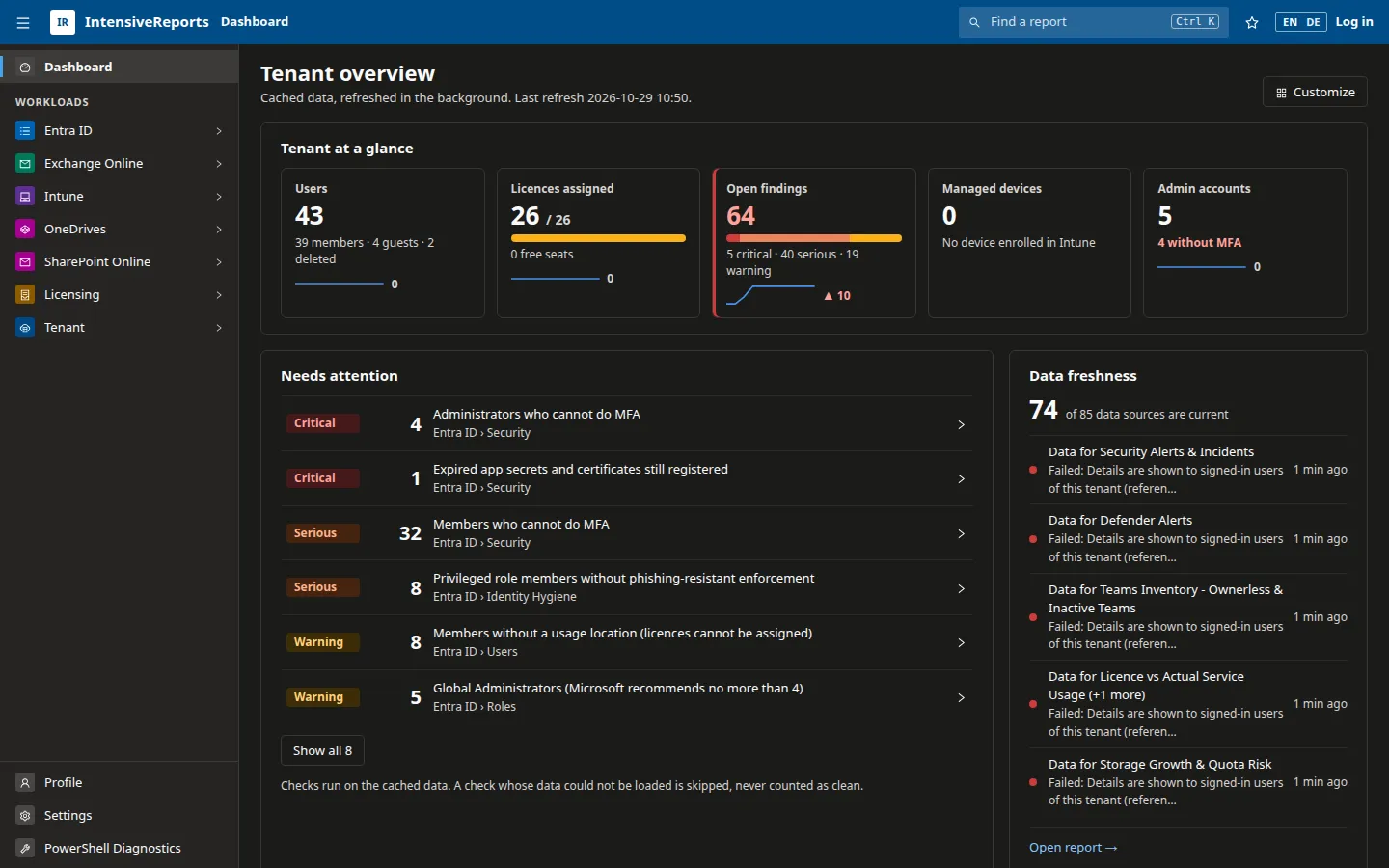
Section titled “Dark mode and density”- Colour mode: light, dark, or follow your operating system. Dark mode covers the layout, tables, cards and inputs; charts keep their own colours.
- Table density: Comfortable, or Compact to fit more rows of a large tenant on screen.
- Rows per page: 10, 25, 50, 100 or 200.
Language and regional formats
Section titled “Language and regional formats”- Language: English or German for the menu, the Settings page, buttons and table controls. Switch with EN / DE in the top bar or under Settings > Regional & language. Report pages stay in English.
- Date format: for example 2026-10-29, 29.10.2026, 29/10/2026, 10/29/2026 or 29 Oct 2026.
- Time format: 24-hour or 12-hour.
- Time zone: times are shown in your time zone (your browser’s, unless you pick another). Dates without a time are never shifted.
- Number format: the separators for thousands and decimals in key numbers.
Finding your way
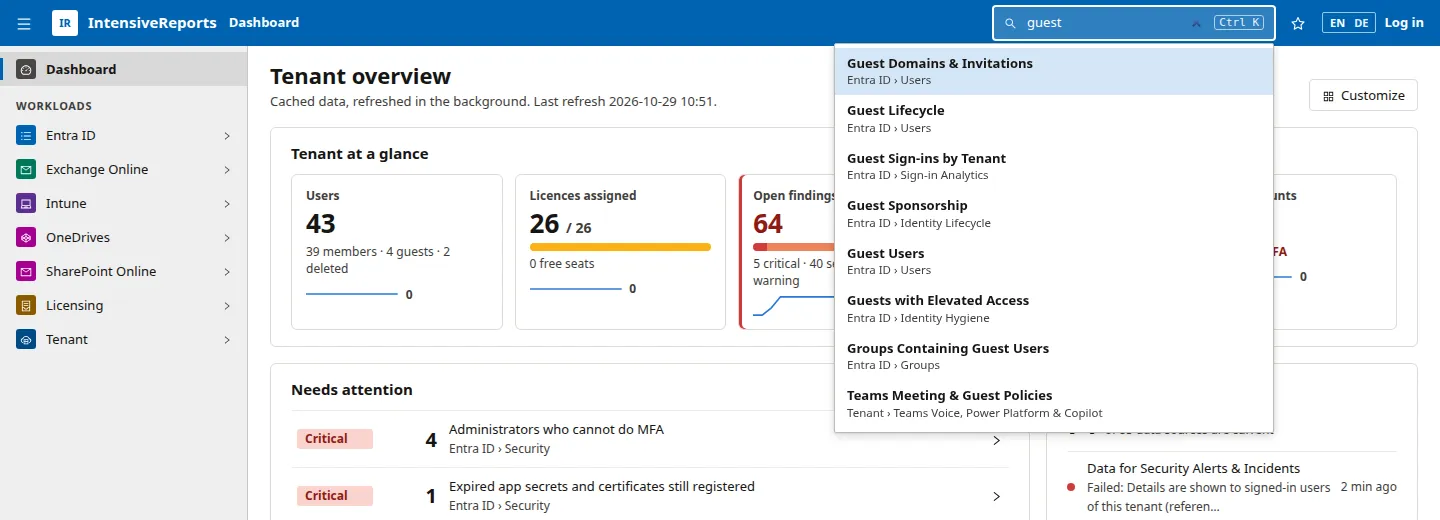
Section titled “Finding your way”- Page search: press Ctrl K (Cmd K on a Mac) or click Find a report in the top bar, and type any words from a report’s name, group or workload.
- Favourites: click the star in the top bar to add the report on screen. Favourites appear at the top of the side menu, you can make one your Start page, and you can keep up to 25.
- Side menu: collapse it with the button at the top left, or start with it collapsed.
See Your settings for every option.