
Getting started
Open the app
Section titled “Open the app”Open the address your administrator gave you in a current browser (Edge, Chrome, Firefox or Safari). The app runs in the browser; there is nothing to install.
Depending on how your organisation set it up, you either see the dashboard straight away or you are asked to sign in with your Microsoft work account. To sign in later, use Log in at the top right; your initials then appear there, with a menu for Settings and Log out.
The screen
Section titled “The screen”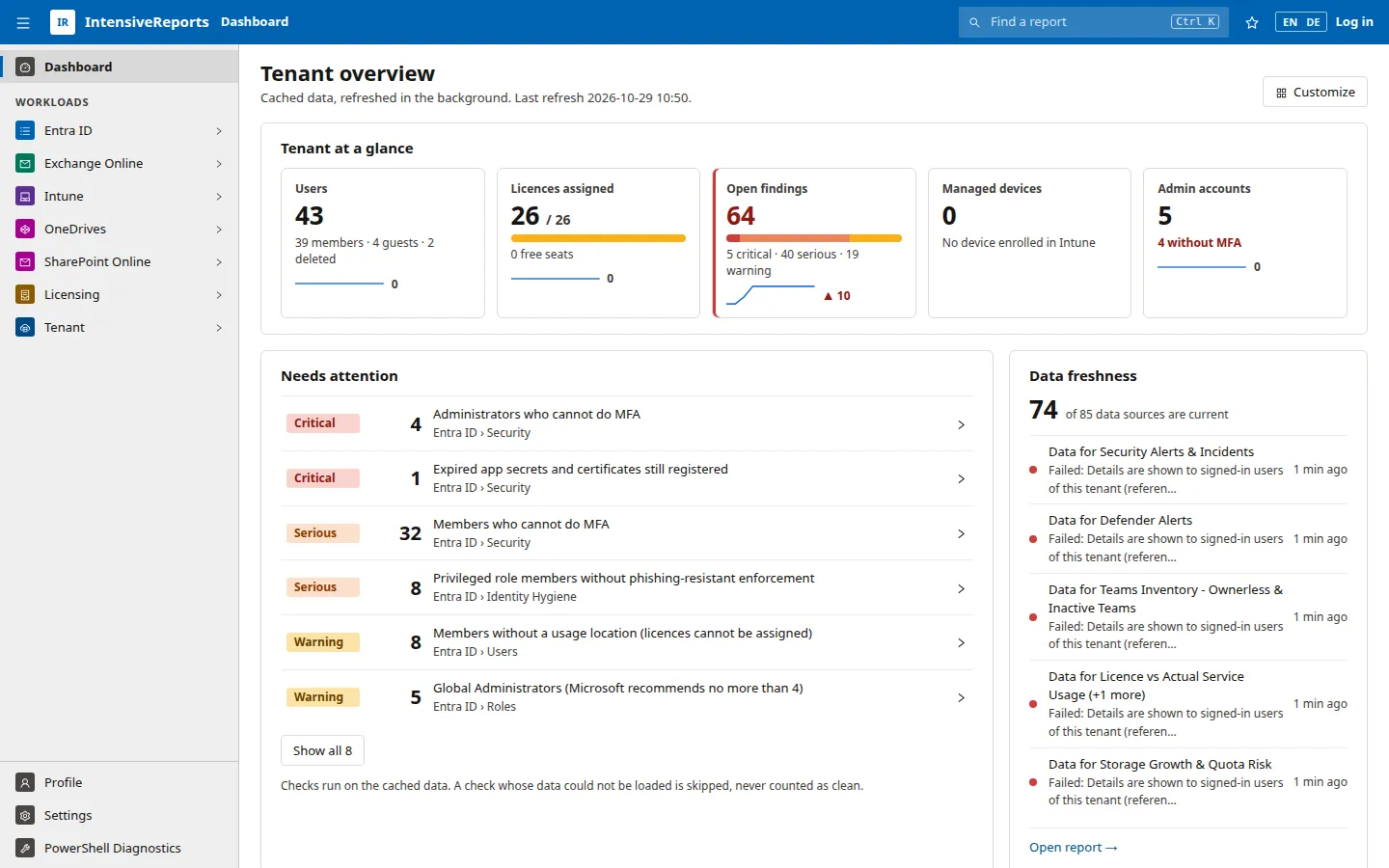
- Top bar: the menu button (collapse or expand the side menu), where you are (the breadcrumb), Find a report (Ctrl K), the star that adds the page to your favourites, EN / DE for the language, and Log in or your initials.
- Side menu: Dashboard at the top, then the workloads (Entra ID, Exchange Online, Intune, OneDrives, SharePoint Online, Licensing, Tenant), each with its groups of reports. At the bottom: Profile, Settings and PowerShell Diagnostics (for administrators).
- Page: the dashboard or the report you opened.
The exact look depends on the layout style you choose; the parts are always the same. See Personalisation.
While the app loads data in the background, a small Refreshing note appears in the top bar with the number of data sources it is loading. Click it to see them under Settings > Data & cache.
What to look at first
Section titled “What to look at first”- The dashboard. Tenant at a glance shows the size of the tenant and the open findings; Needs attention lists the most serious problems. Click any line to open the report behind it.
- Data freshness. The Data freshness widget tells you whether the numbers are current. A red dot means a data source could not be loaded, usually because a permission or licence is missing. Tell your administrator.
- Your workload. Open the workload you look after in the side menu. Its landing page shows that workload’s own dashboard and every report with a count, so you can see where the problems are.
- Your favourites. Open the reports you need most and click the star, so they are at the top of the menu next time.
- Your Profile. Signed in, Profile shows what the app knows about your own account: your admin roles, your sign-in methods and what to fix.