
The dashboard
The start page, Tenant overview, and the top of each workload landing page (“Entra ID at a glance”, “Intune at a glance” and so on) are dashboards. Each one is a set of widgets you can arrange to suit your work.
Using the dashboard
Section titled “Using the dashboard”- Each widget answers one question; the question shows when you customize.
- Click a number, a line or Open report to go to the report behind it.
- Tenant at a glance shows 30-day trend lines under its numbers once two days of history exist.
- A widget whose data is still loading shows a spinner. A widget whose data failed says so, usually because of a missing permission; it never shows a zero instead. A widget whose data an administrator switched off says that too.
See Dashboards and findings for the widgets and checks.
Customise your dashboard
Section titled “Customise your dashboard”- Click Customise at the top right of the dashboard.
- Arrange the widgets:
- Reorder: drag a widget, or use the arrow buttons in its bar.
- Width: 1/3, 2/3 or Full of the row.
- Hide: removes the widget from your dashboard.
- Add more under Add widgets (hidden and unused widgets, each with the question it answers) and Add report tiles (see below).
- Click Done to keep your layout, or Cancel to discard the changes.
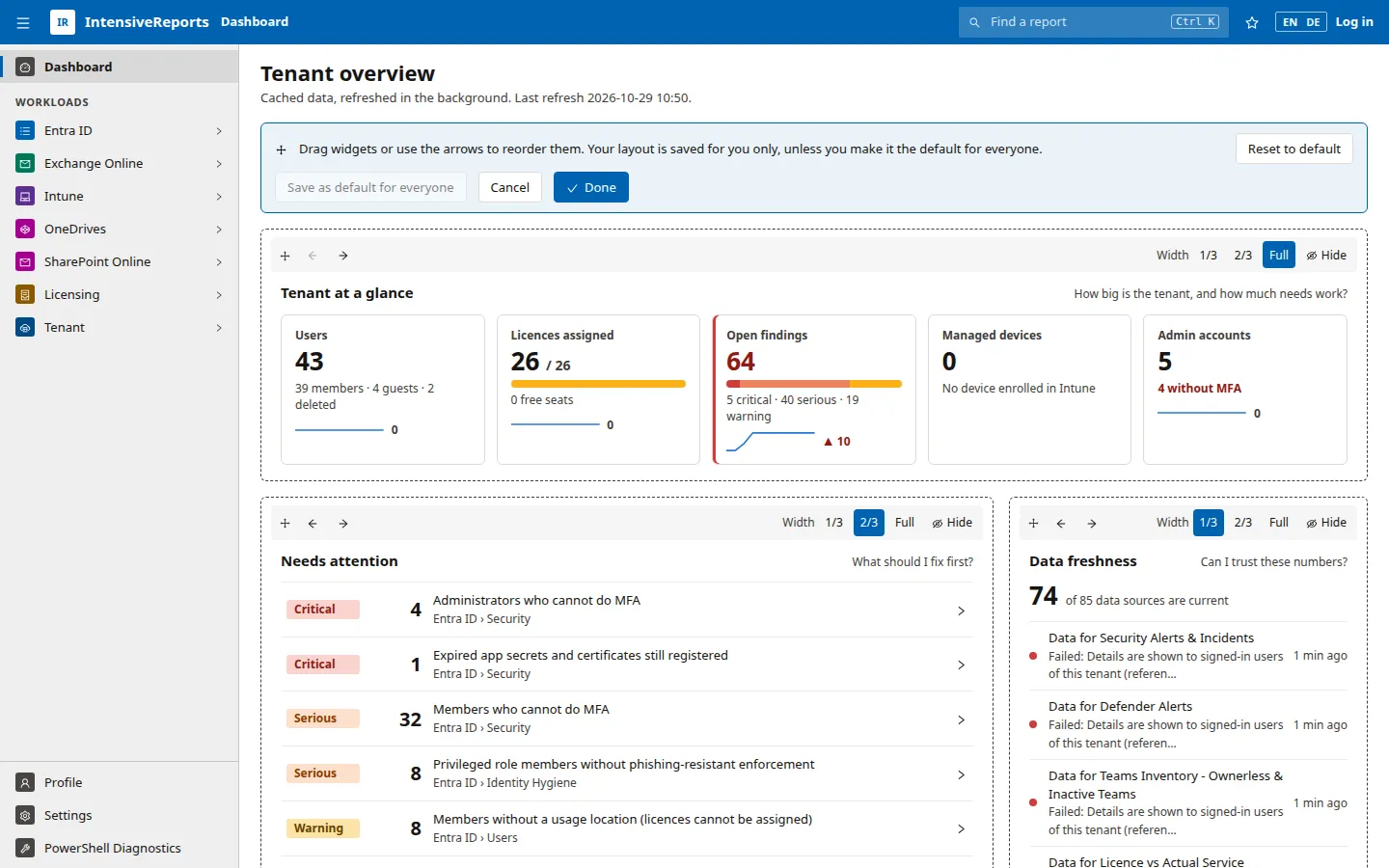
Your layout is stored in your browser and applies only to you. A dashboard holds up to 16 widgets; hide one to add another. Reset to default brings back the layout your organisation set; press Done to keep it.
Add a report tile
Section titled “Add a report tile”A report tile puts a report’s key numbers and its most serious rows on your dashboard.
- In customise mode, go to Add report tiles.
- Type in Find a report. On a workload dashboard, choose This workload or All workloads.
- Click Add next to the report.
Reports marked loads on demand run PowerShell; their tile shows a Load button so the dashboard stays fast. Scan reports show their last scan and a Run scan button.
Set the default for everyone (administrators)
Section titled “Set the default for everyone (administrators)”Global Administrators and users with the IR.Admin app role, signed in from your tenant, can make a layout the default:
- Customise the dashboard as you want it.
- Click Save as default for everyone and confirm.
Everyone who has not customised their own dashboard now sees this layout, and Reset to default brings anyone back to it. Each workload dashboard has its own default. Other users see the button greyed out.
To return all dashboards to the built-in layouts, an administrator uses Reset all to defaults at the bottom of the Settings page.